
Claude Desktop
Video Walkthrough
Section titled “Video Walkthrough”Watch the full setup from start to first trade, then follow the written guide below if you need details on any step.
What the video covers: installing Claude Desktop, signing in, adding the Axiory.ai connector, entering your FIX API credentials, configuring risk limits, and verifying a healthy connection.
Part 0: Requirements
Section titled “Part 0: Requirements”For the Claude integration to function with Axiory, you will need a paid Claude account (Pro, Team, or Enterprise), as Cowork mode requires a paid plan. This is not a fee charged by Axiory, but rather a requirement for accessing Claude itself.
You also need a macOS or Windows computer with Google Chrome installed — Chrome is required for the MCP authorisation flow.
Part 1: Install the Claude Desktop App
Section titled “Part 1: Install the Claude Desktop App”For Axiory.ai to function, the Claude Desktop app is required (the browser version at claude.ai does not support this integration).
Step 1 — Download Claude Desktop
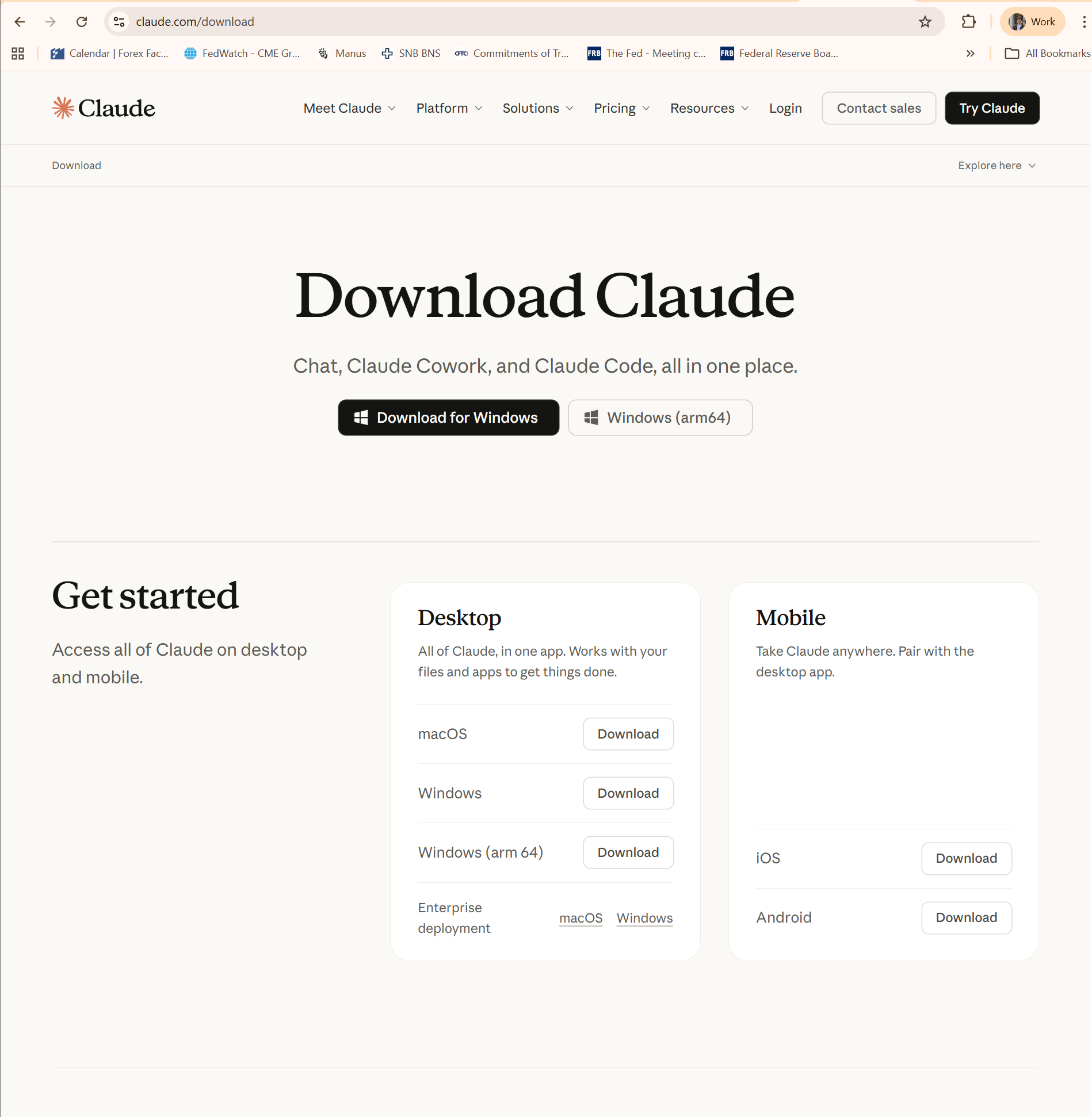
Section titled “Step 1 — Download Claude Desktop”- Open your browser and go to claude.com/download
- You’ll see the download page with options for macOS, Windows, and Windows (arm64)
- Click the button for your platform to download the installer
- The file (approx. 246 MB) will download to your Downloads folder
Step 2 — Install the App (macOS only)
Section titled “Step 2 — Install the App (macOS only)”Windows users can skip this step — the Windows installer runs automatically.
- Open the downloaded
.dmgfile from your Downloads folder - In the installer window, drag the Claude.app icon into the Applications folder
- Wait for the copy to complete (takes about 5 seconds)
- Close the installer window
Step 3 — Sign In
Section titled “Step 3 — Sign In”- Open Claude from your Applications folder (or Spotlight on Mac / Start menu on Windows)
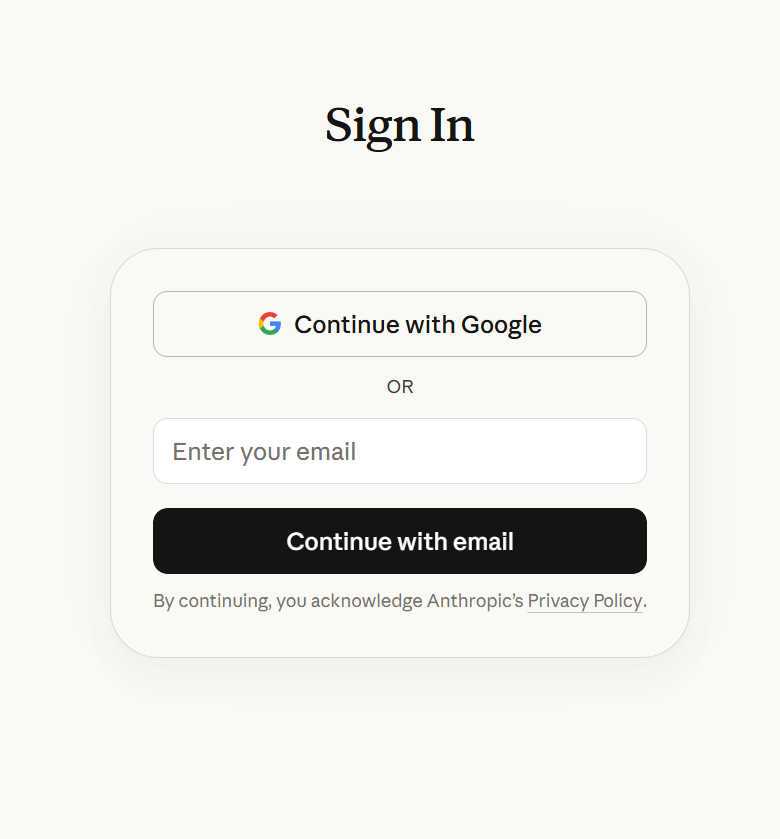
- The app will open and show the Sign In screen
- Sign in with Google SSO or click Continue with email
- Complete the authentication flow
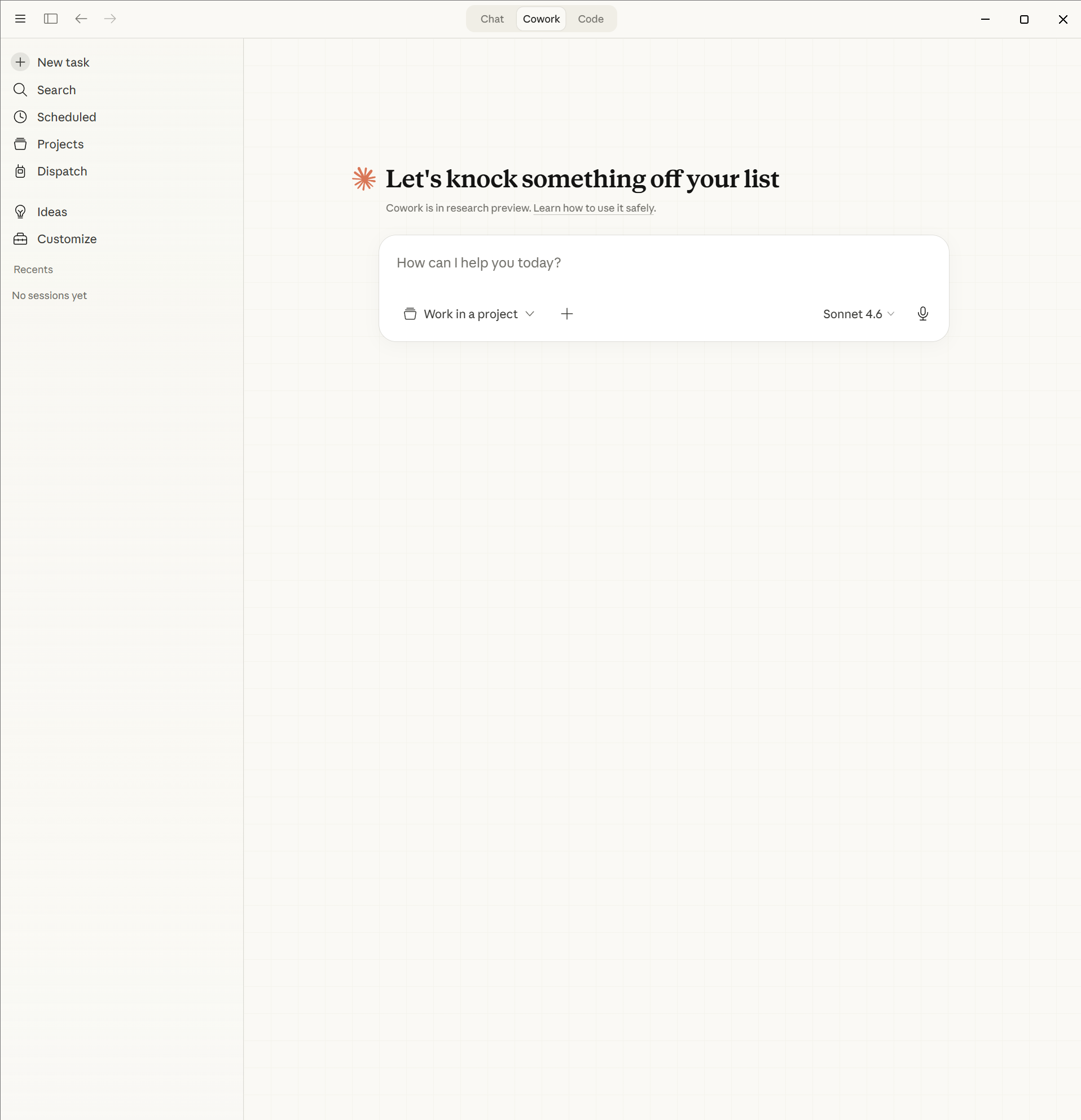
- Once signed in, you’ll see the Claude desktop interface with Chat, Cowork, and Code tabs at the top
Part 2: Explore the Claude Desktop Interface
Section titled “Part 2: Explore the Claude Desktop Interface”The Claude Desktop app has three modes, accessible via tabs at the top:
- Chat — Standard conversational interface. Shows a greeting, model selector (Sonnet 4.6), and access to Chats, Projects, and Artifacts.
- Cowork — Agentic task mode where Claude can manage scheduled tasks and work through a list of actions autonomously.
- Code — Claude Code integration for development workflows.
Part 3: Connect the Axiory cTrader MCP
Section titled “Part 3: Connect the Axiory cTrader MCP”Step 1 — Retrieve Your FIX API Credentials
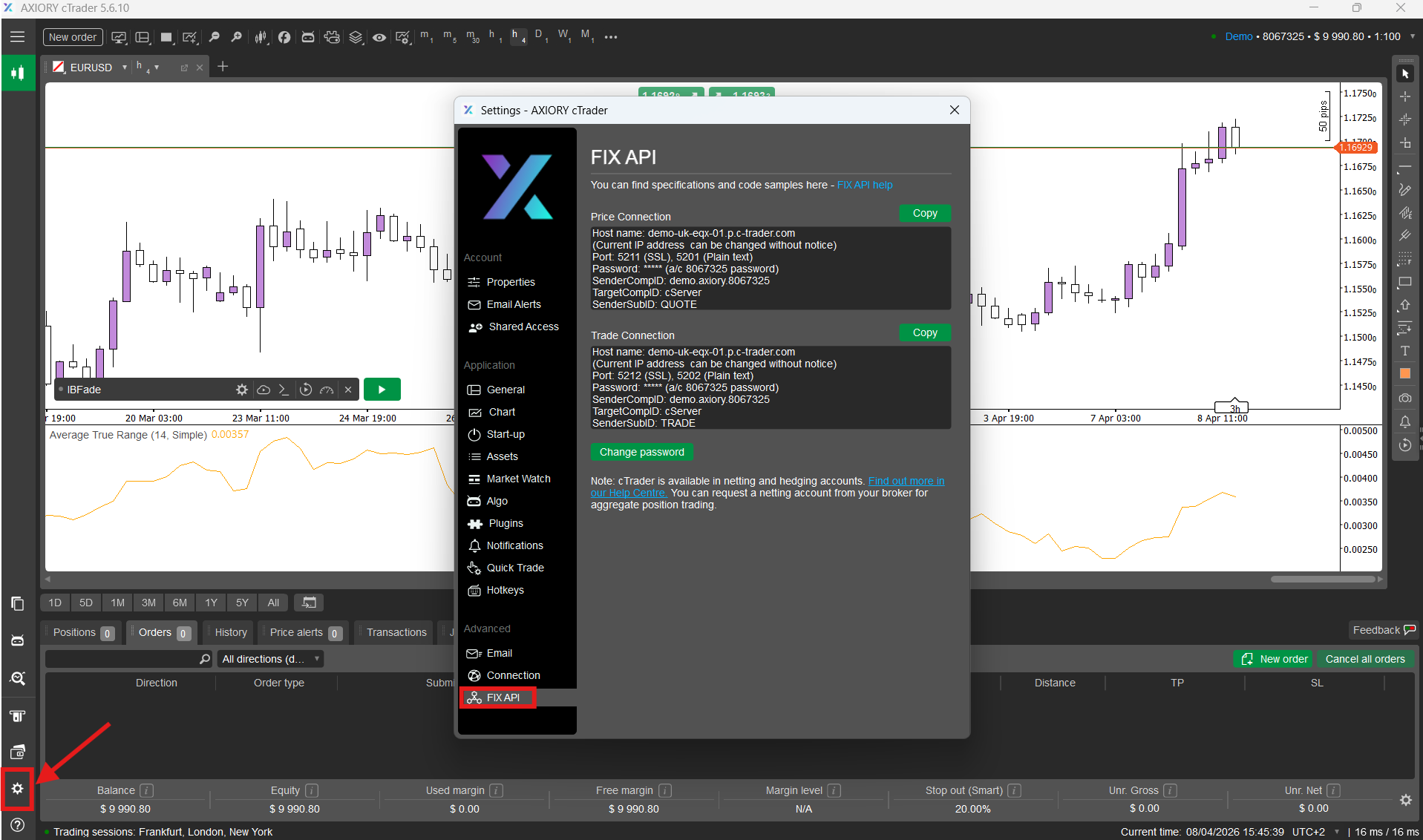
Section titled “Step 1 — Retrieve Your FIX API Credentials”- Open your cTrader desktop application. If not yet installed, download it from your Axiory portal.
- Log in to cTrader.
- Navigate to Settings and look for the FIX API category under Advanced Settings.
- Click Change Password and create a password consisting of numbers only, at least four digits long. Write it down — you will need it shortly.
Step 2 — Open Connectors Settings
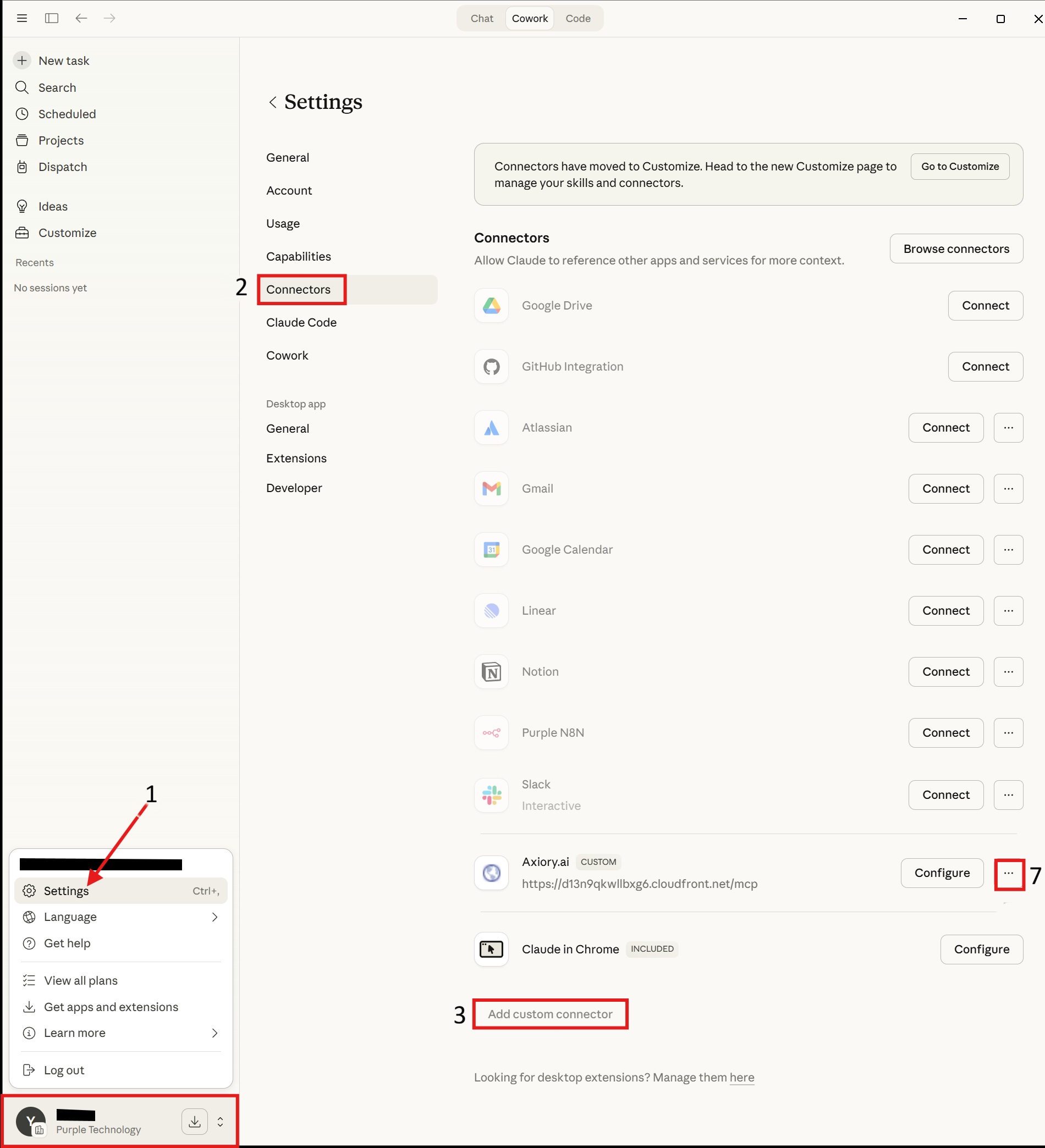
Section titled “Step 2 — Open Connectors Settings”- In Claude Desktop, click on your profile at the bottom-left corner to open the menu
- Select Settings
- Navigate to the Connectors tab — you’ll see a list of available connectors
- Click Add custom connector
- Name it
Axiory cTrader MCP - In the Remote MCP server URL field, enter:
https://mcp.axiory.ai/mcp - Click Add
- To activate the connector, click the
...menu next to it, then Disconnect, then Connect
Step 3 — Fill in the Connection Form
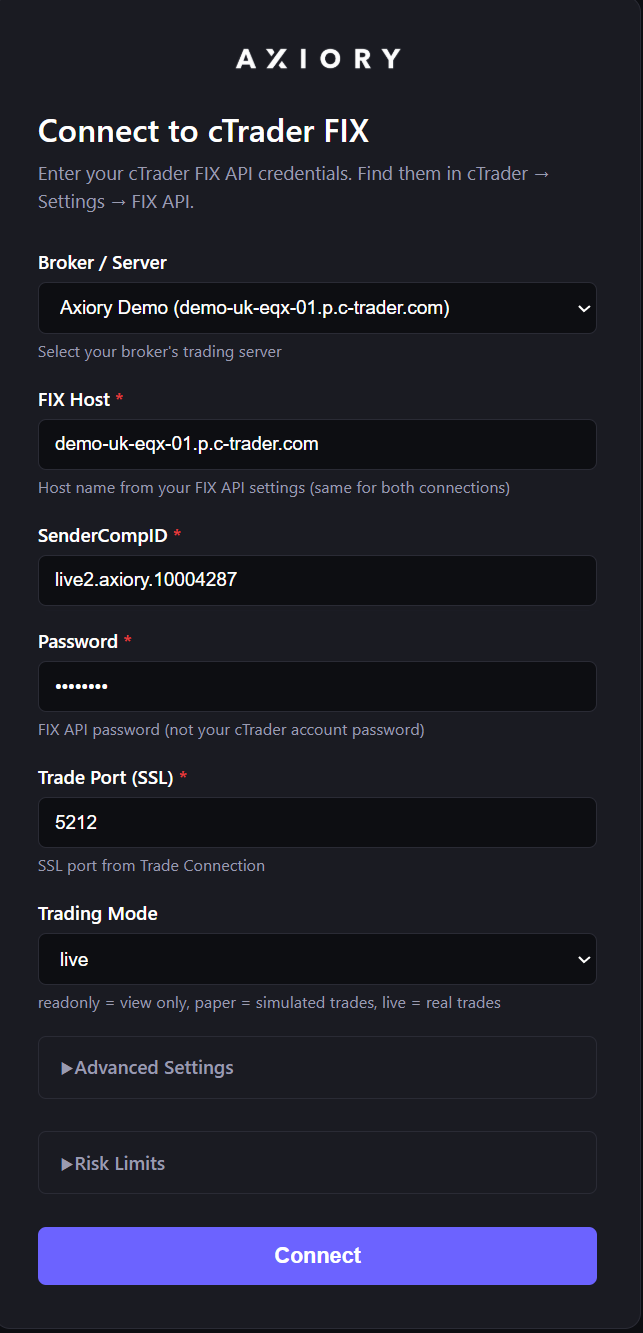
Section titled “Step 3 — Fill in the Connection Form”After clicking Connect, a browser window opens with the “Connect to cTrader FIX” form. Fill in your FIX API credentials under Trade Connection:
- FIX Host — Enter:
live-uk-eqx-01.p.c-trader.com - SenderCompID — Enter your SenderCompID from cTrader (e.g.
live2.axiory.10004287) - Password — Enter the FIX API password you set in Step 1 above. This is NOT your cTrader account password.
- Trade Port (SSL) — Enter
5212 - Trading Mode — Select your preferred mode:
readonly— view only, no tradespaper— simulated trades (recommended for testing)live— real trades with real money
Step 4 (Optional) — Configure Risk Limits
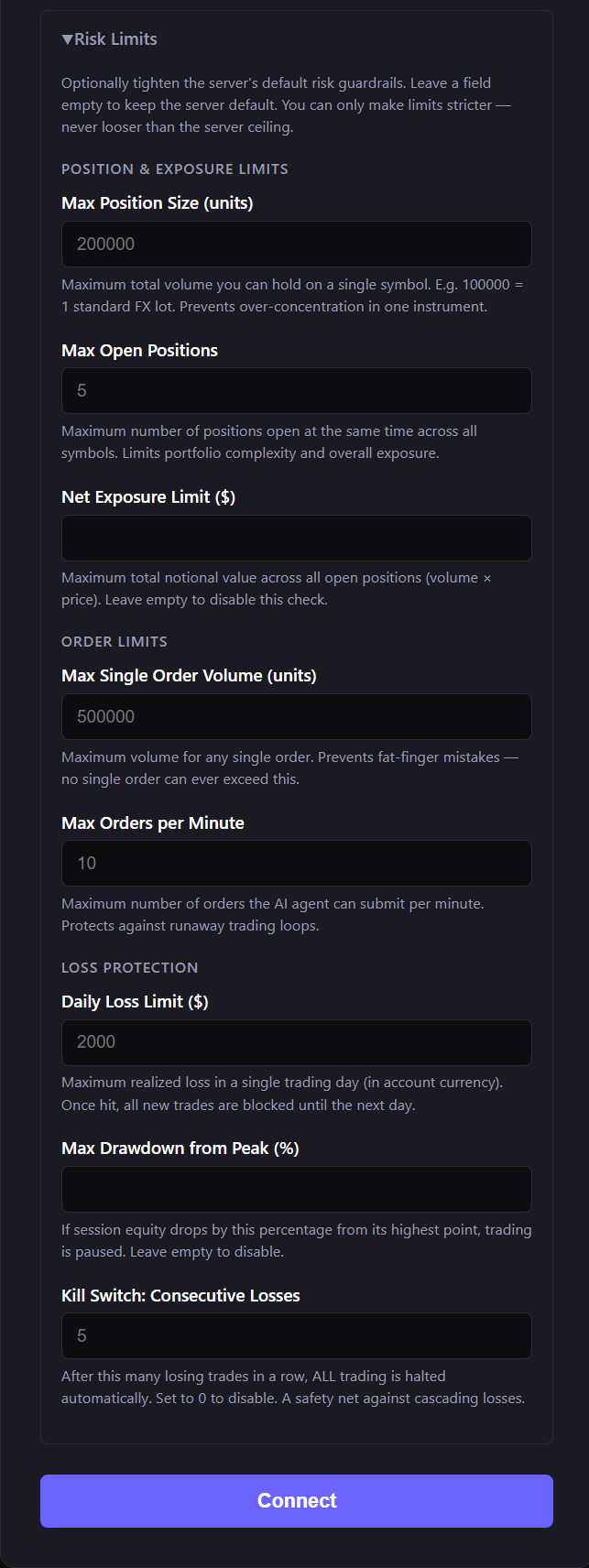
Section titled “Step 4 (Optional) — Configure Risk Limits”Expand the ▸ Risk Limits section on the same page. These are safety guardrails that protect you from oversized or runaway trades:
| Setting | Default | Description |
|---|---|---|
| Max Position Volume (per symbol) | 200,000 | Max total volume on one symbol. 100,000 = 1 standard FX lot |
| Max Open Positions | 5 | Max positions open simultaneously across all symbols |
| Net Exposure Limit ($) | (empty) | Max total notional value. Leave empty to disable |
| Max Single Order Volume (units) | 500,000 | Prevents fat-finger mistakes — no single order can exceed this |
| Max Orders per Minute | 10 | Protects against runaway trading loops |
| Daily Loss Limit ($) | 2,000 | Max realised loss per day. Once hit, trading is blocked until next day |
| Max Drawdown from Peak (%) | (empty) | Additional drawdown protection. Leave empty to disable |
Step 5 — Connect
Section titled “Step 5 — Connect”- Review all the filled fields
- Click the Connect button at the bottom
- Wait for the connection to establish — you’ll see a “Connected Successfully” page, which then auto-closes
Step 6 — Set Up cTrader ID Password (first-time only)
Section titled “Step 6 — Set Up cTrader ID Password (first-time only)”Skip this step if you have already set a cTrader ID password.
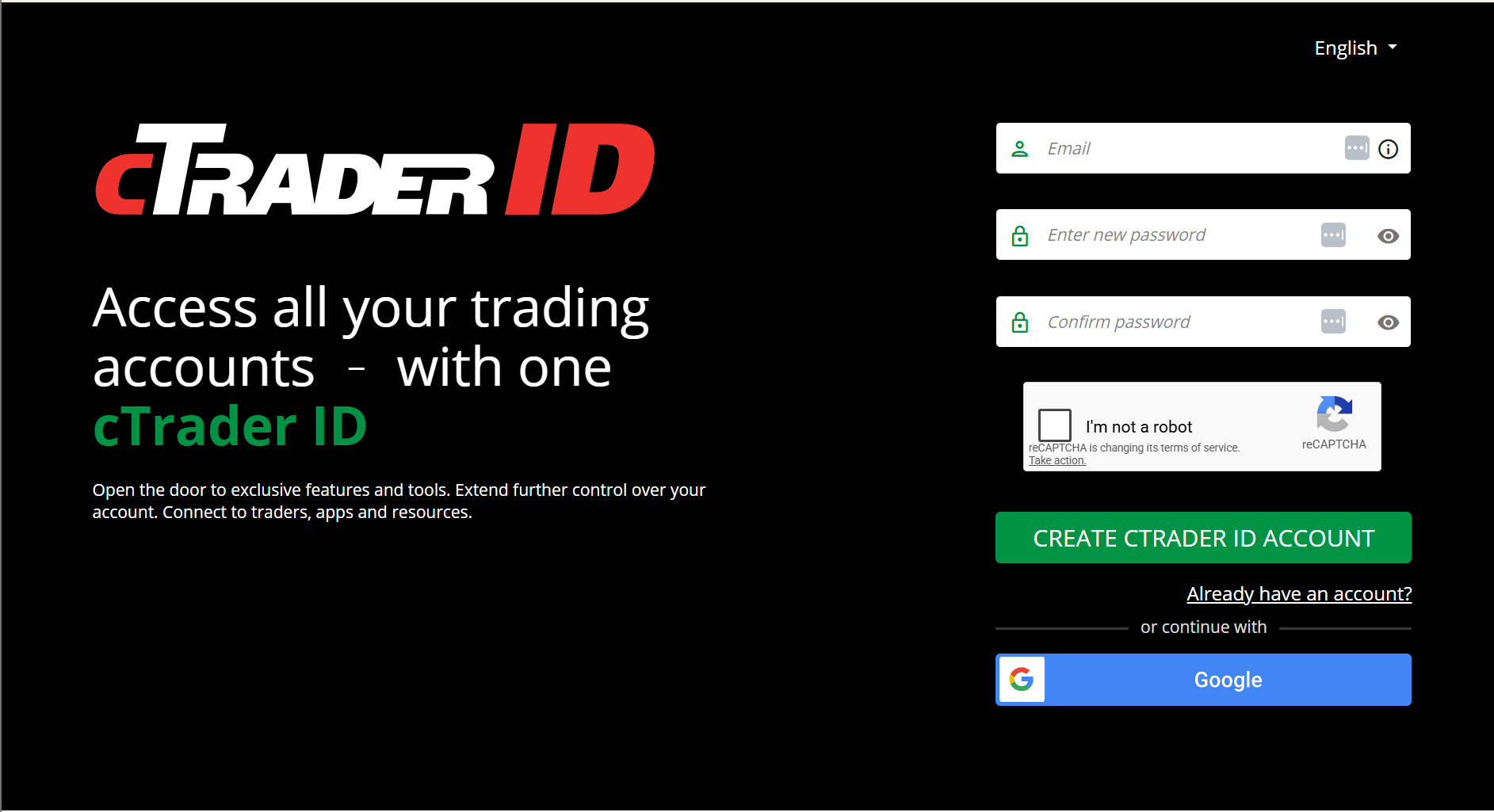
After connecting, you may be redirected to the cTrader ID page to set a password:
- Enter a new password for your cTrader ID account
- Confirm the password
- Click Set password
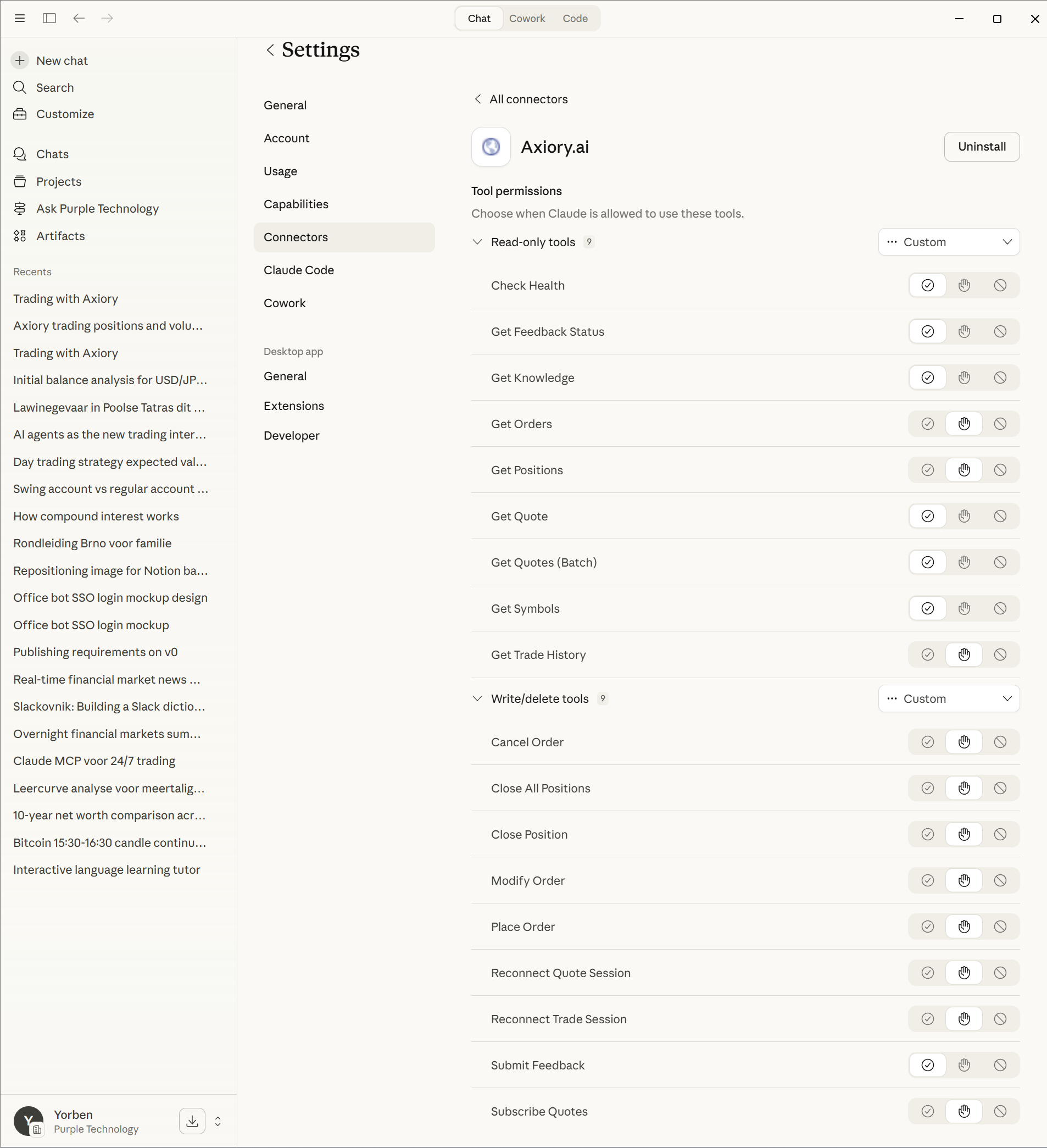
Step 7 — Verify Tool Permissions
Section titled “Step 7 — Verify Tool Permissions”Back in Claude Desktop, go to Settings → Connectors and click on the Axiory connector to see its tools:
Read-only tools (auto-approved — Claude can use these without asking):
- Check Health, Get Feedback Status, Get Knowledge, Get Orders, Get Positions, Get Quote, Get Quotes (Batch), Get Symbols, Get Trade History
Write/delete tools (need your approval each time):
- Cancel Order, Close All Positions, Close Position, Modify Order, Place Order, Reconnect Quote Session, Reconnect Trade Session, Submit Feedback, Subscribe Quotes
By default, all write tools are set to “Needs approval” — Claude will ask for your confirmation before placing any trade.
Part 4: Verify the Connection
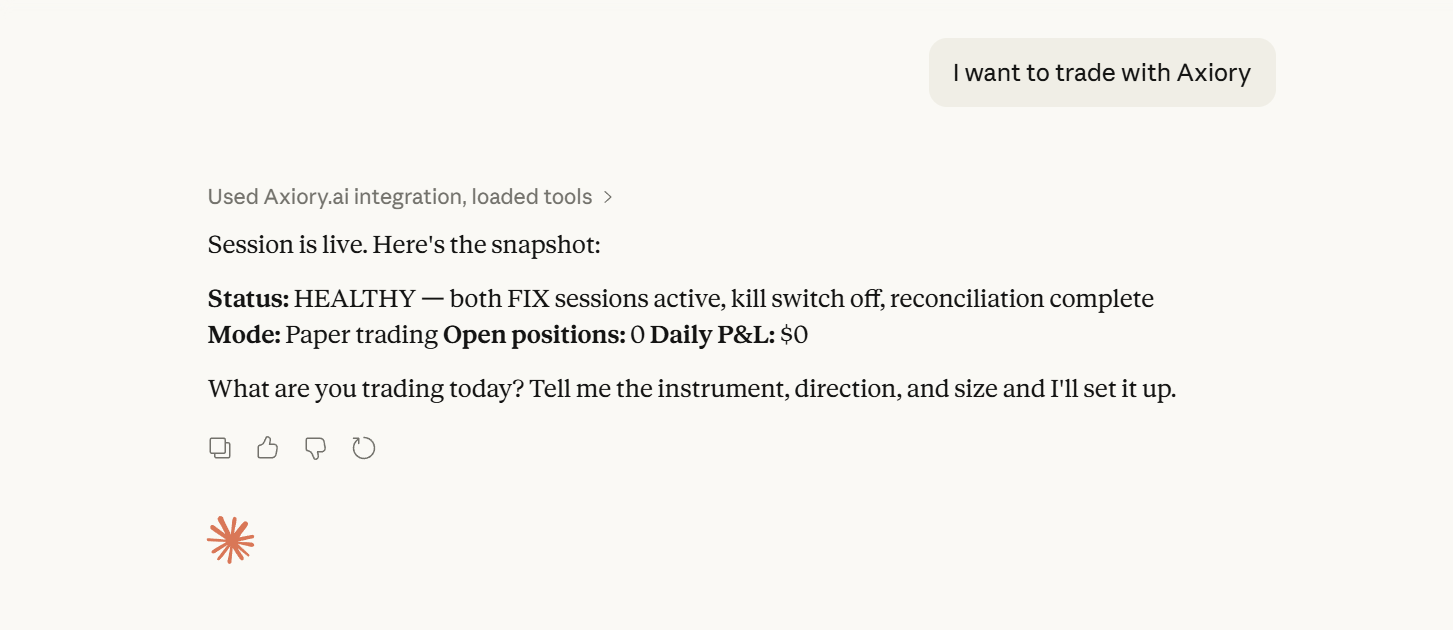
Section titled “Part 4: Verify the Connection”- Switch to Chat mode in Claude Desktop
- Start a new conversation and type: “I want to trade with Axiory”
- Claude will automatically load available tools and run a connection health check
- If everything is set up correctly, you’ll see a HEALTHY status with a summary of your session
Frequently Asked Questions
Section titled “Frequently Asked Questions”Why does my Claude status say “Connection not healthy”?
This is usually a session timeout or a minor sync error. Go to Settings → Connectors → Axiory, click the three dots (...), select Disconnect, then Connect again to refresh the bridge.
I don’t see the Axiory tools in my chat interface. Where are they?
Make sure you are using the Claude Desktop App and not the web browser version at claude.ai. Also verify you are in Chat or Cowork mode — tools are not available in Code mode.
Do I have to pay for Claude to use Axiory.ai?
Yes. You need a paid Claude account (Pro, Team, or Enterprise). The “Cowork” agentic mode is a premium feature from Anthropic and is not included in the free tier.
What is the difference between Chat and Cowork modes for trading?
Chat is for standard analysis and manual instructions. Cowork is designed for agentic tasks, where Claude can manage a list of scheduled actions or work through a strategy autonomously.
Which password do I use for the FIX connection?
Do not use your cTrader login password. You must use the specific FIX API password you created in cTrader under Settings → Advanced → FIX API. It must be numeric and at least four digits long.
Does Claude trade automatically without my input?
By default, all write tools (such as Place Order) are set to “Needs Approval.” Claude will prepare the trade and ask you to confirm before anything is sent to the market.
How do I verify that Claude is connected to my account?
Start a new chat and type: “I want to trade with Axiory.” Claude will run a health check and return a HEALTHY status showing your current mode, open positions, and daily P&L.
Next Steps
Section titled “Next Steps”- Operating Modes Guide — Understand readonly, paper, and live in detail
- Risk Limits — Full breakdown of all risk guardrail settings
- Choosing an Agent — Compare Claude with other supported MCP clients
Start with paper mode to get comfortable, then switch to live when you’re ready.